

dashboard.qtap.qa/analytics/reports.
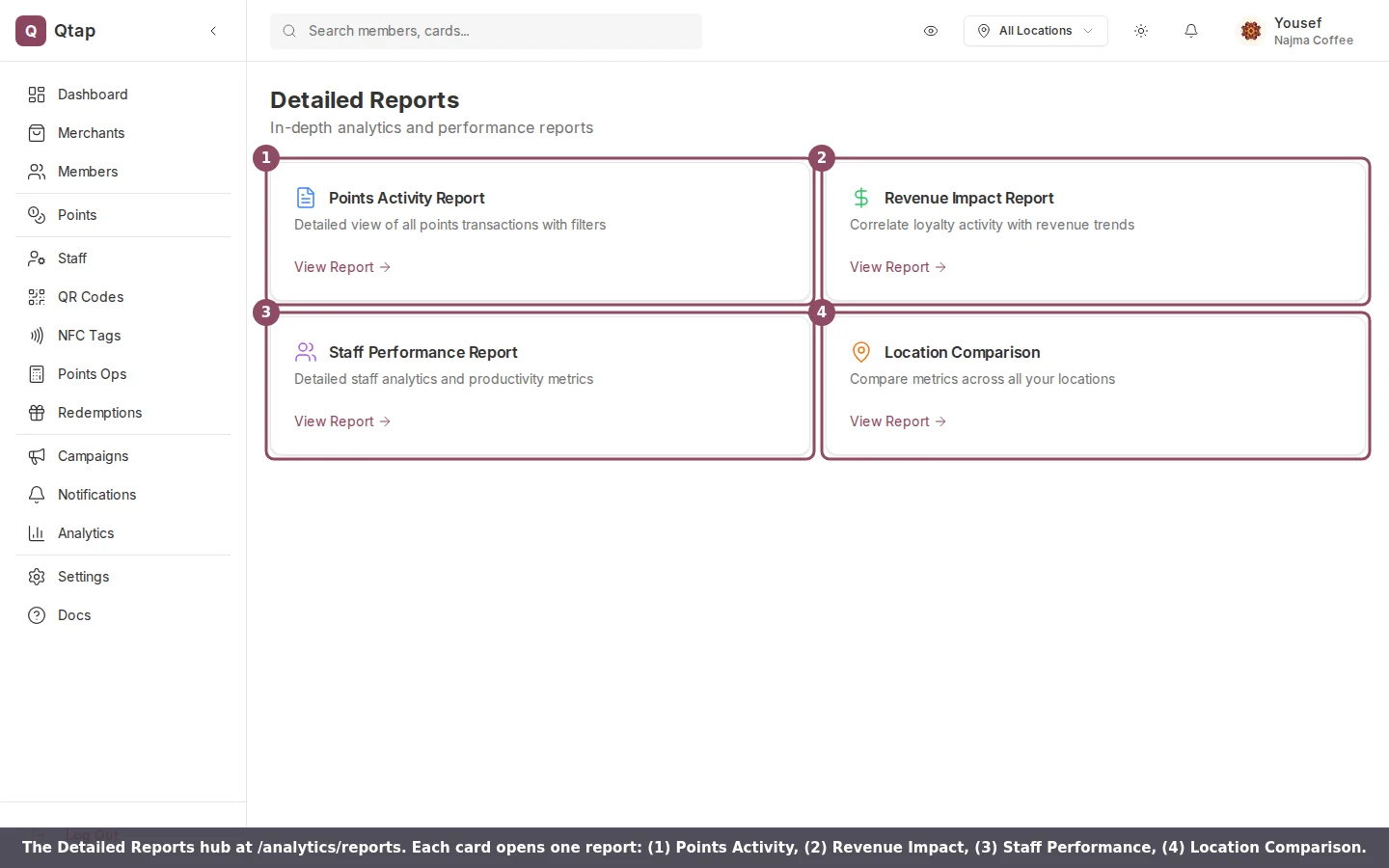
The Detailed Reports hub. Each card opens one report.
Points Activity Report
A line-by-line log of every points transaction. Each row shows the date and time, the member, the type, the points, the purchase amount, and a description. The type is one of Earned, Redeemed, Adjusted, or Expired. Long histories page 50 rows at a time.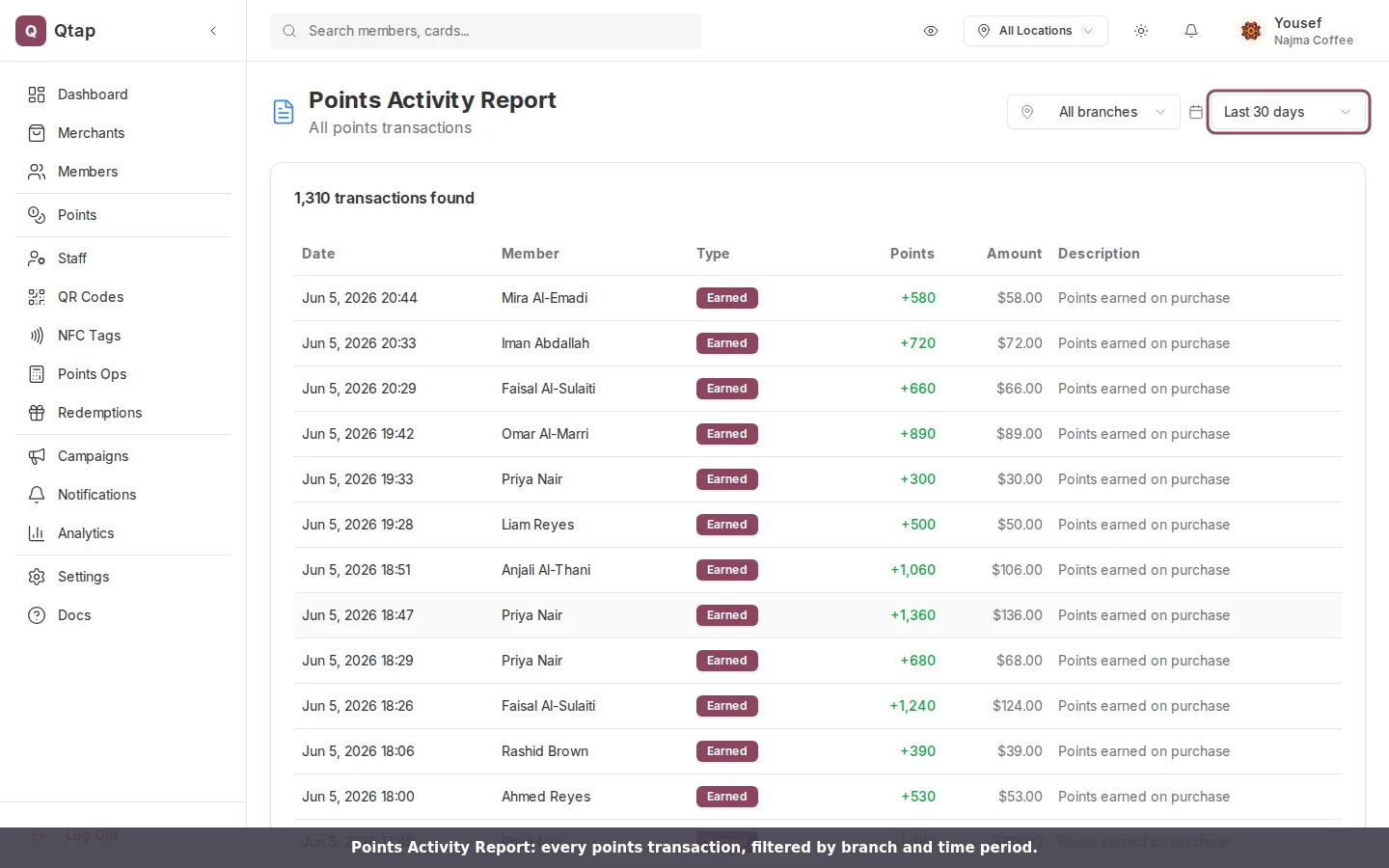
The Points Activity Report: every transaction, filtered by branch and time period.
Revenue Impact Report
Estimated revenue read against loyalty activity. Three figures sit at the top: total revenue, loyalty transactions, and average revenue per transaction. Below them, a chart plots revenue and transaction count over time on the same axis so you can see them move together. The revenue figure is an estimate Qtap builds from transaction amounts rather than a feed from your point-of-sale till. Treat it as a trend line and keep your till for the exact books.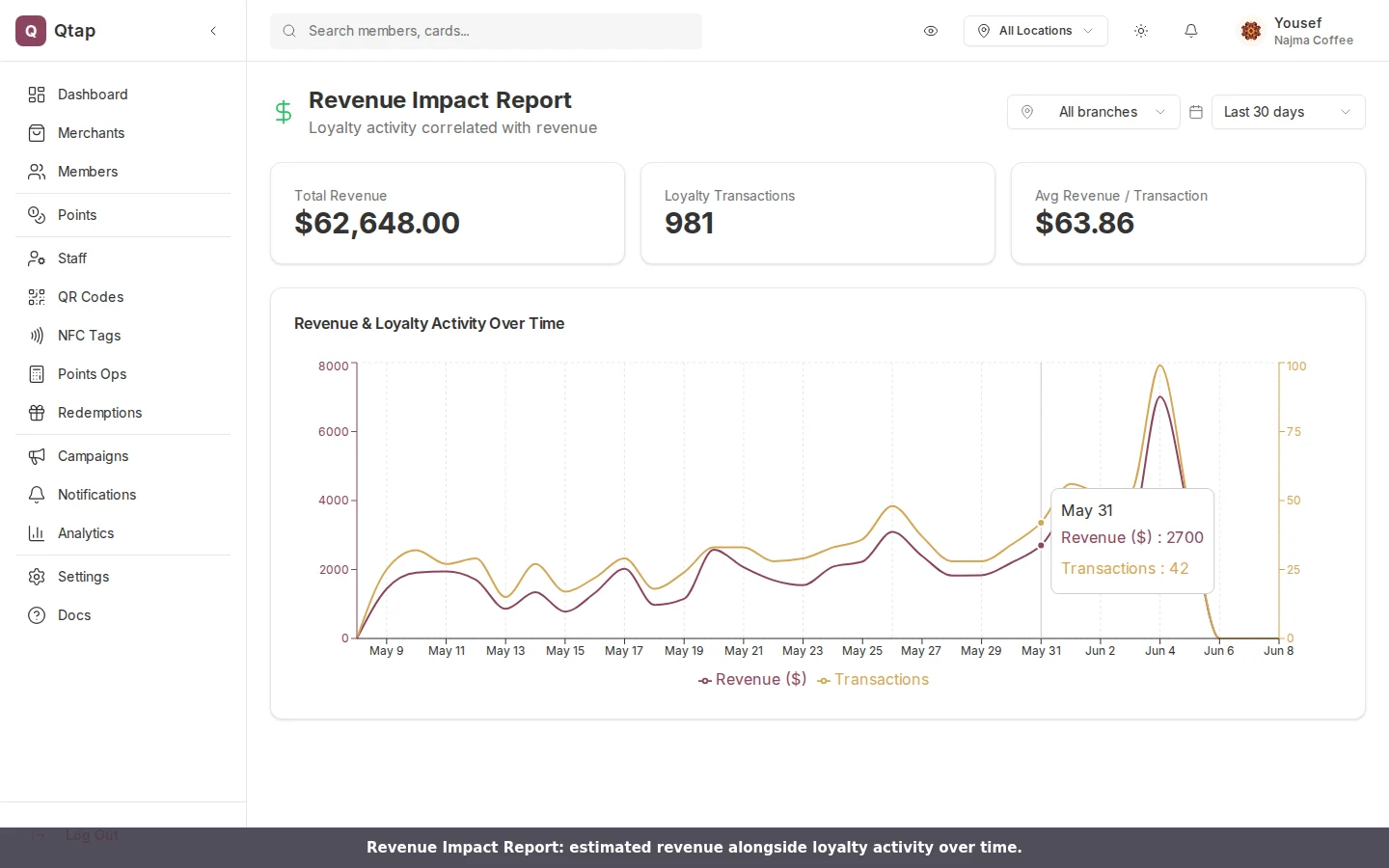
The Revenue Impact Report: estimated revenue alongside loyalty activity over time.
Staff Performance Report
One row per staff member, with stamps issued, points issued, rewards processed, members served, and a daily average for stamps and points. On a points-only program the stamp columns read zero, which is expected. Use this to see who is busy and who needs a hand at the counter.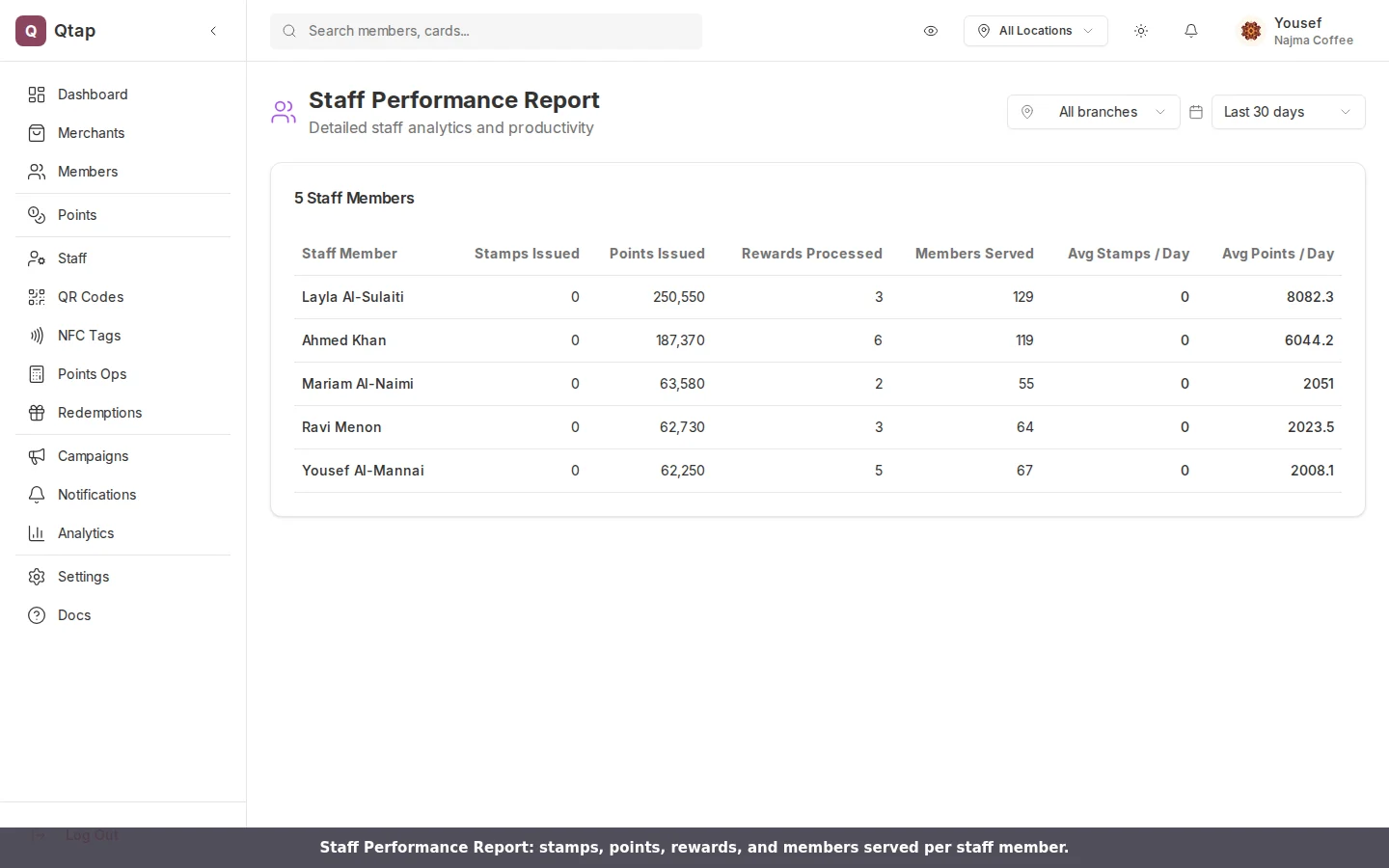
The Staff Performance Report: activity per staff member over the selected period.
Location Comparison
For merchants with more than one branch, a card per location showing stamps, points, redemptions, members served, and estimated revenue. The cards sit side by side so you can compare a busy branch against a quiet one at a glance. This report has a time period selector but no branch filter, since the point is to see every branch at once.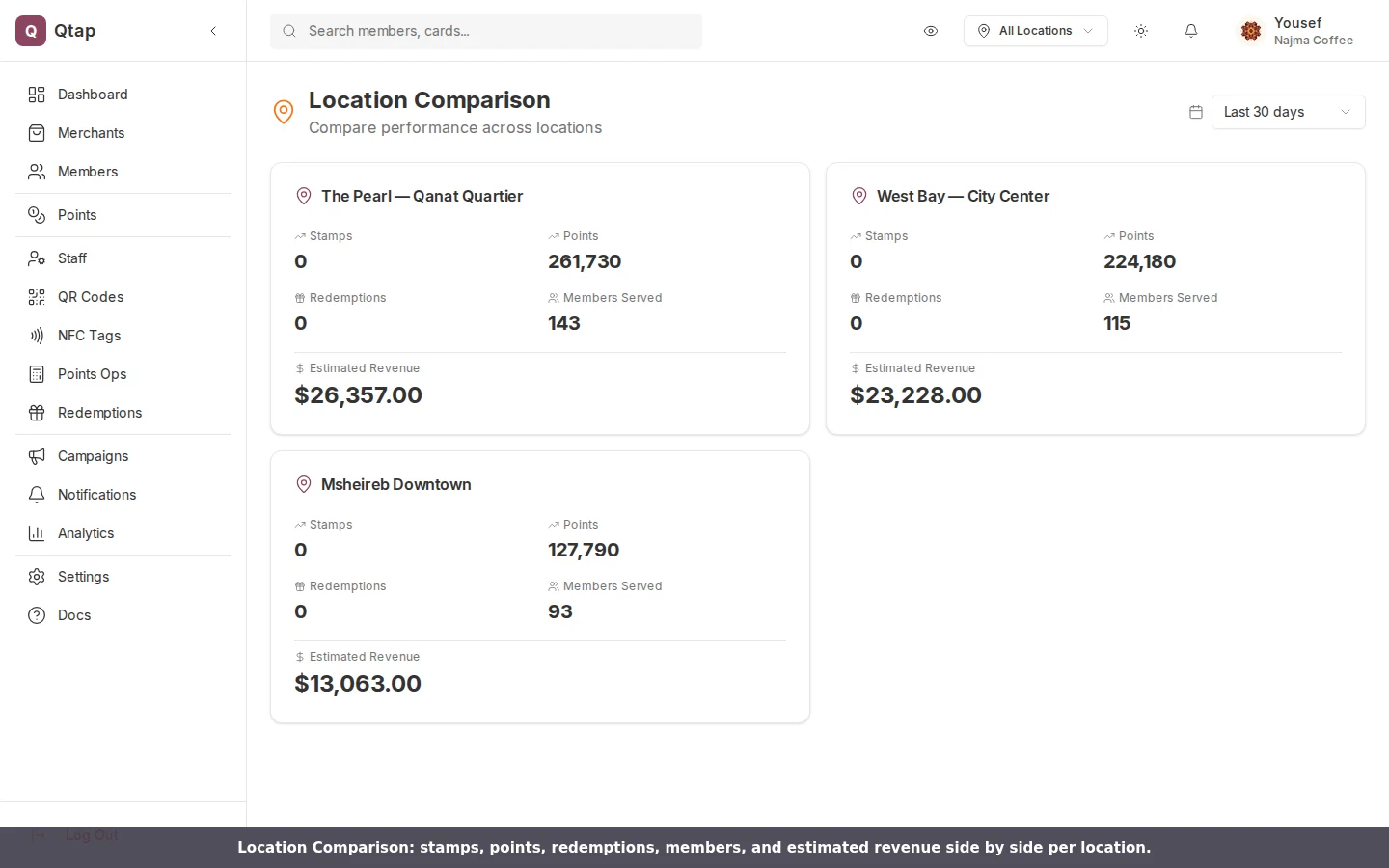
Location Comparison: each branch's stamps, points, redemptions, members, and estimated revenue.
For the headline metrics, charts, and export tools, start on the Analytics Overview. The reports here are the detailed view beneath it.