

Requirements
For a member to receive a birthday campaign, they must have a birthday date saved in their Qtap account. Members set this themselves in the app. You can also add or edit a member’s birthday from their profile in the dashboard — go to Members, open the member’s profile, and click Edit Info. Members without a birthday on file will not receive the campaign.Creating a Birthday Campaign
Click Campaigns in the left sidebar, then click New Campaign. The wizard walks you through these steps:- On the Type step, select Birthday Rewards. Give the campaign a name (e.g., “Birthday Bonus”) and an optional description. Click Next.
- On the Trigger step, choose when to send the notification: on the day, 1 day before, 3 days before (default), or 7 days before. If you’re attaching a reward, sending 3 days early gives members time to plan a visit. Click Next.
- On the Reward step, optionally attach a reward. Members receive it in their wallet when the notification sends. Available types include bonus stamps, a points top-up, or a custom voucher. Click Next whether you add a reward or not.
- On the Message step, fill in the Notification Title (e.g., “Happy Birthday!”) and the Notification Body (e.g., “You’ve got a free coffee waiting for you this week.”). Keep the body short — push notifications truncate long text on most phones. Click Next.
- On the Conditions step, optionally narrow who receives the campaign — for example, only members who have visited in the last 90 days. Leave this blank to target all members with a birthday on file. Click Next.
- On the A/B Test step, optionally set up two message variants to test which performs better. Click Next.
- On the Review step, check the summary and click Activate to start the campaign, or Save as Draft to publish it later.
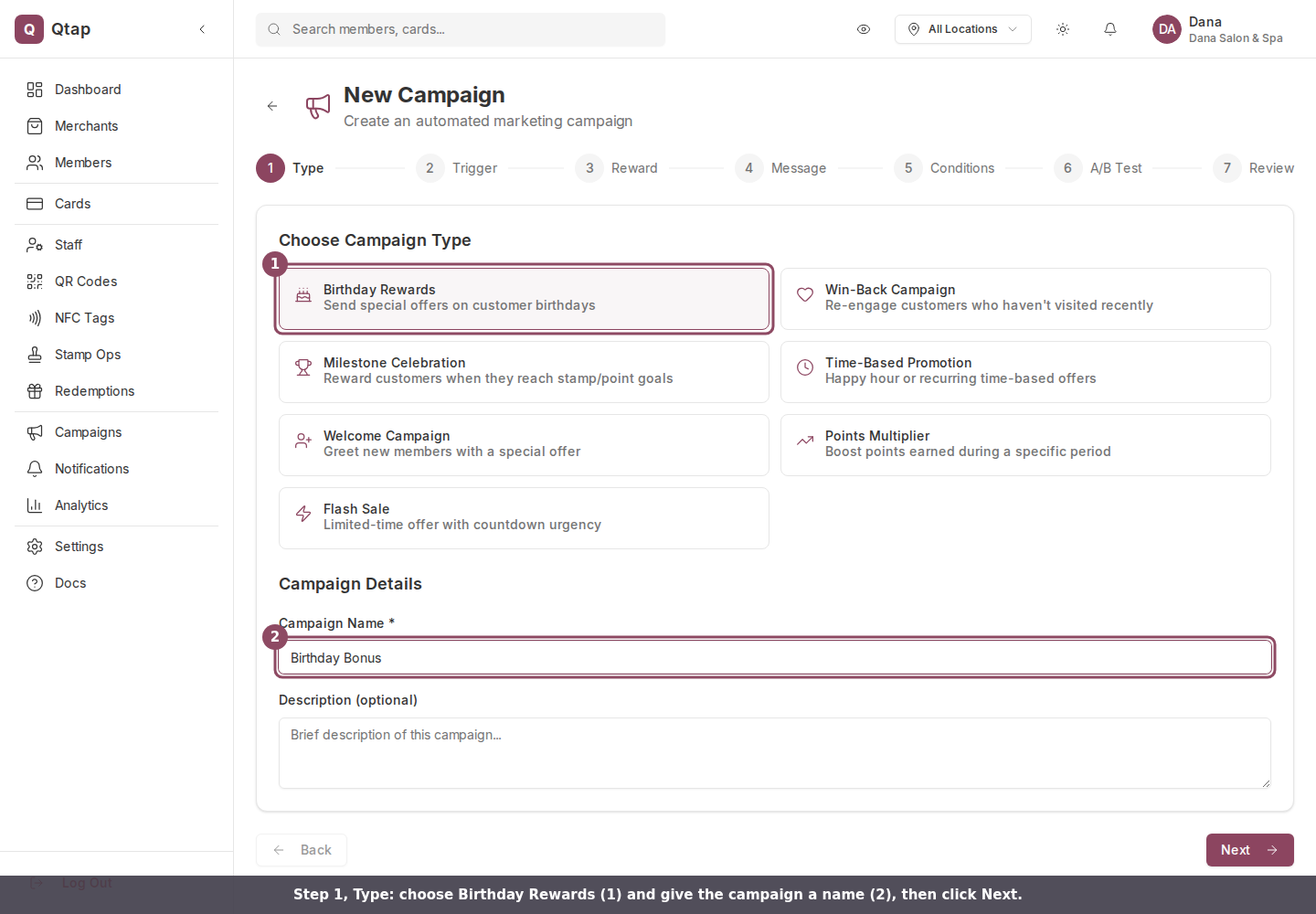
Step 1, Type: choose Birthday Rewards and give the campaign a name.
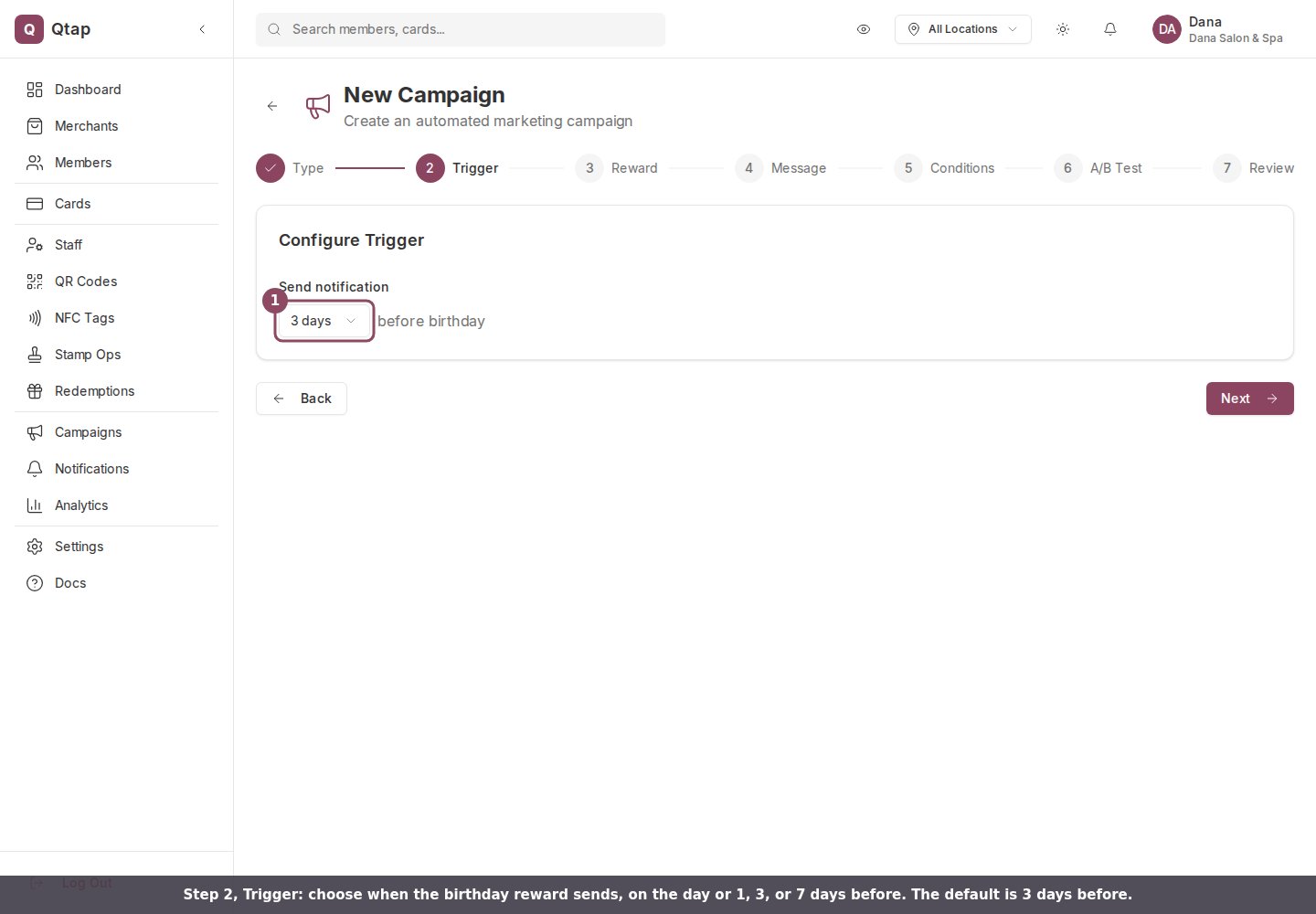
Step 2, Trigger: choose how many days before the birthday the notification sends. The default is 3 days before.
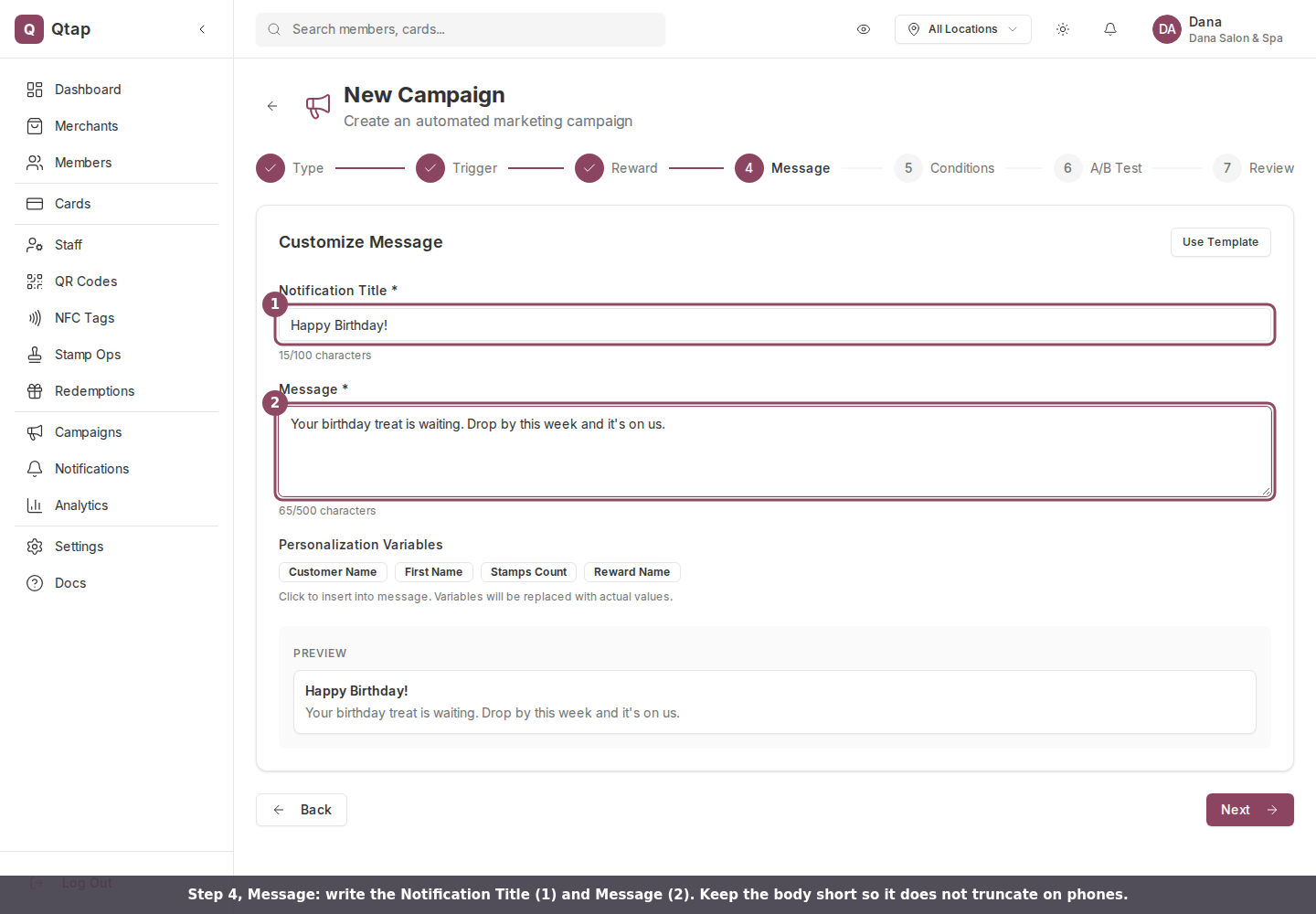
Step 4, Message: write the Notification Title and Message. A live preview shows how it looks on a phone.
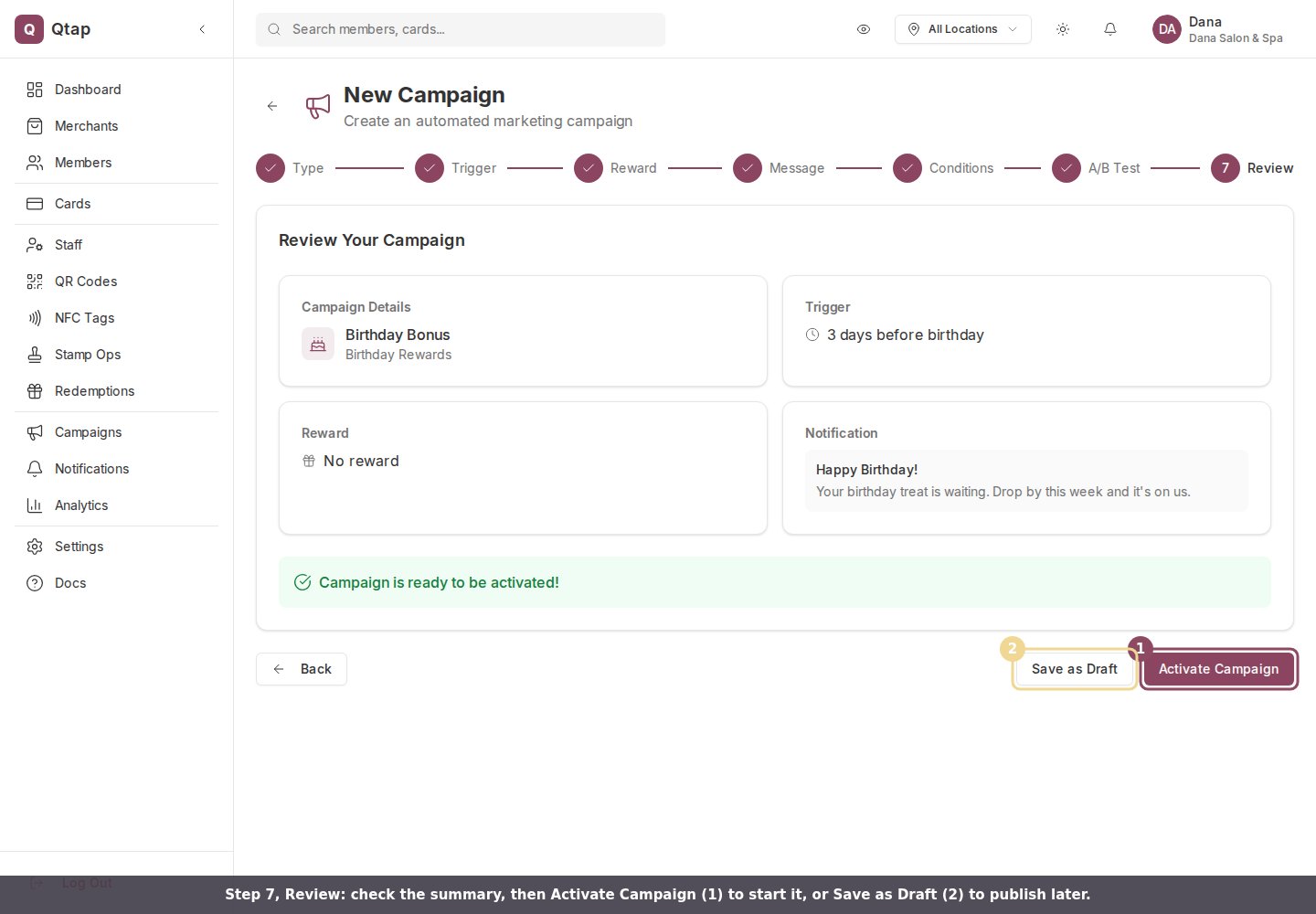
Step 7, Review: check the summary, then Activate Campaign to start it or Save as Draft to publish later.
Once a birthday campaign is active, it runs every year automatically. You do not need to re-create it each year.
Managing the Campaign
After activating, the campaign appears on the Campaigns page with a status of Active. Click the three-dot menu on the campaign card to:- Pause — stops future sends without deleting the campaign
- Edit — change the trigger timing, reward, or message
- Delete — removes the campaign permanently
Campaigns Overview
All campaign types and how campaigns work in Qtap
Win-Back Campaign
Re-engage members who haven’t visited in a while
Member Profiles
How to view and edit member birthday information