

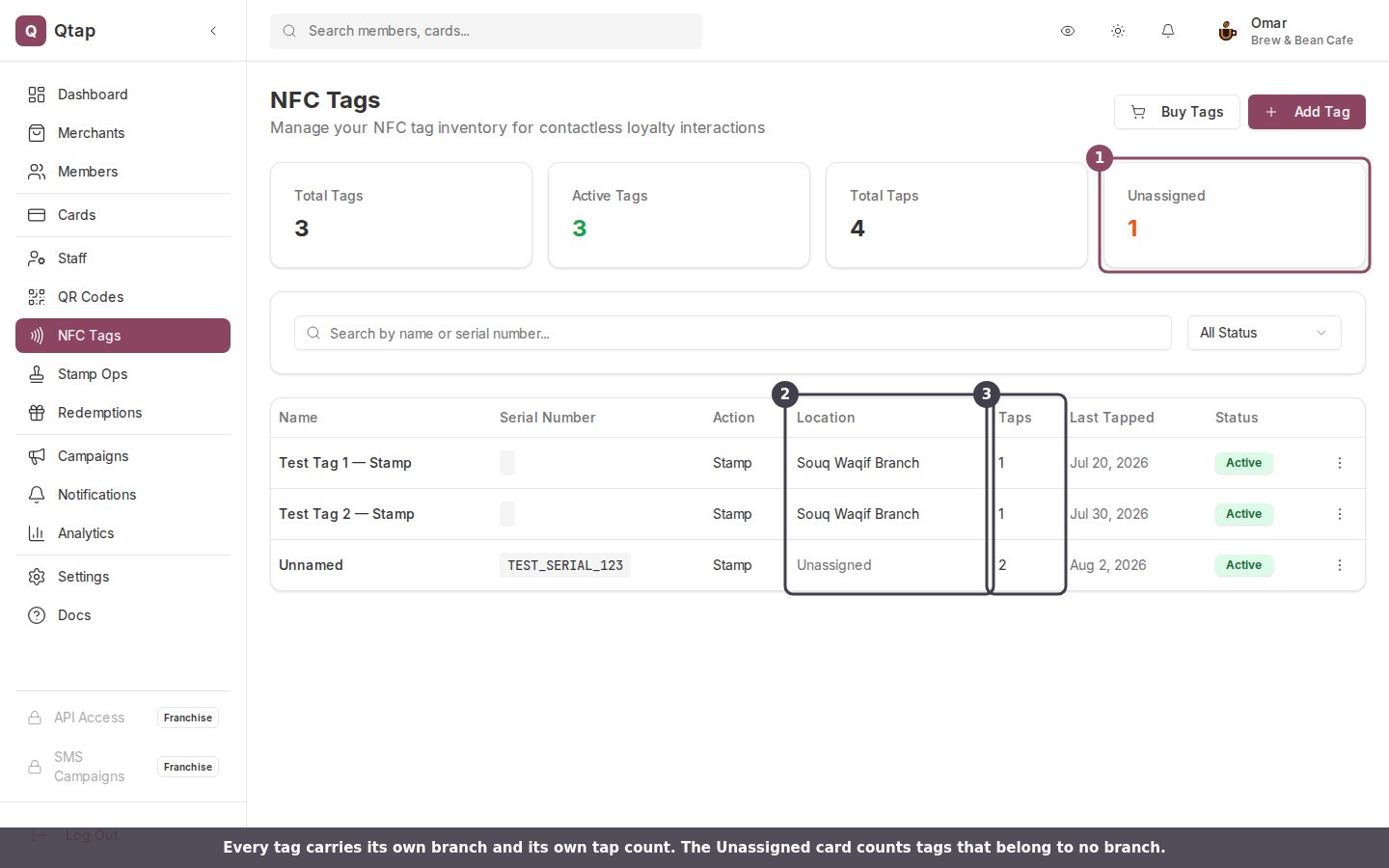
Every tag carries its own branch and its own tap count. The orange Unassigned card counts tags that belong to no branch.
Start at the counter
The till is where a tag earns its keep. A customer pays, holds their phone to the tag, and the stamp or the points land before they have put their wallet away. Set the action to Add Stamp to fill the card the tag was set up against, or to Award Points and give each tap a value.A stamp tag adds one stamp per card, per customer, per day. A second tap on the same card the same day is refused with “You already earned a stamp here today. Come back tomorrow!” The day rolls over at midnight UTC, which is 3am in Qatar. Points tags have no daily limit.
Give every branch its own tag
A tag is screwed to one counter, so Qtap treats the tag’s branch as the branch the customer earned at. Assign each tag to the branch it lives in and its taps show up in your per-branch numbers on the Analytics page and in the Location Comparison report.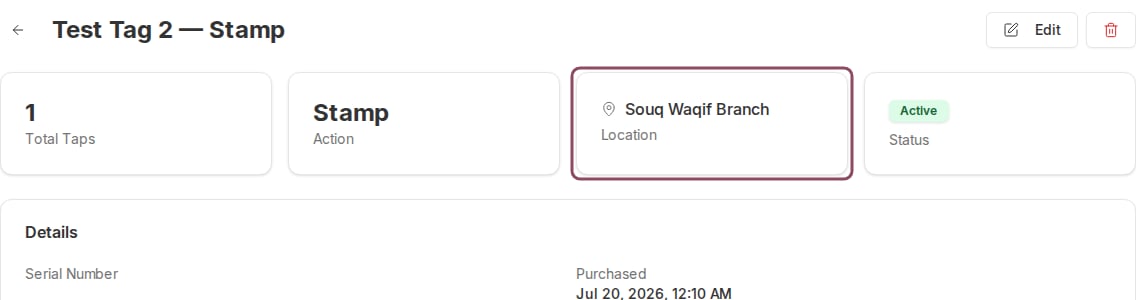
A tag assigned to a branch. Taps from this tag are counted at Souq Waqif Branch.
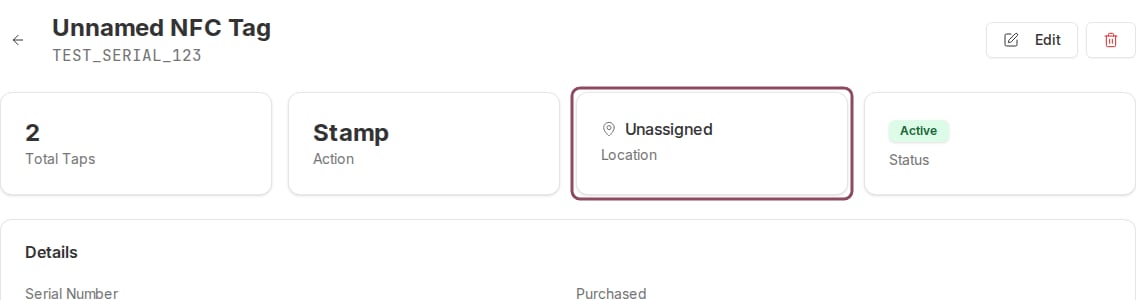
The same page for a tag with no branch set. Its taps count toward your totals but never toward a branch.
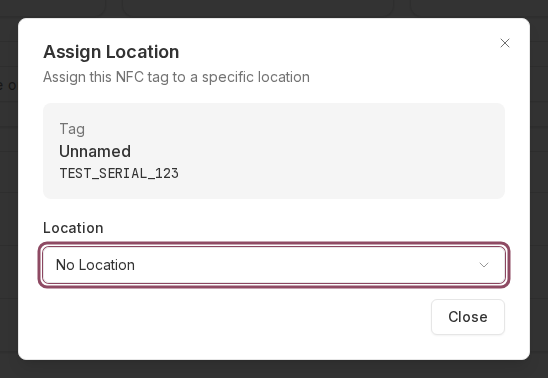
The Assign Location dialog. Picking a branch here saves straight away, with no separate save button.
Name each tag after its spot
The tag name is yours alone; customers never see it. Use it for the exact place the tag sits, likeTill 2 or Table 5. Each tag keeps its own running Total Taps and its own Last Tapped date, so named tags tell you which spots people actually use.

A tag's Details panel. Last Tapped and the total tap count are what tell you a spot is being used.
Those two figures are all the per-tag history the dashboard shows. There is no per-tag list of who tapped and when, so compare tags by their tap counts rather than looking for a log.
Put a tag where you do not want to give anything away
Some spots are worth measuring without paying for it, like a table or the waiting area. Set the action to Check-In and a tap records the visit and nothing else, so there is no stamp to honour and no balance to fund. The tag’s own tap count still goes up, and the customer’s last-activity date moves, which keeps them out of the At Risk audience for another 30 days. A check-in tap still counts as the customer showing up, so a birthday, milestone, or welcome reward they are owed is handed over on that tap the same as on any other.Moving a tag later
The address written on a tag never changes, and neither does the business it belongs to. Everything else you can rewrite from the dashboard as often as you like: rename it, move it to another branch, change what a tap does, or switch it off. Open the tag, click Edit, and save.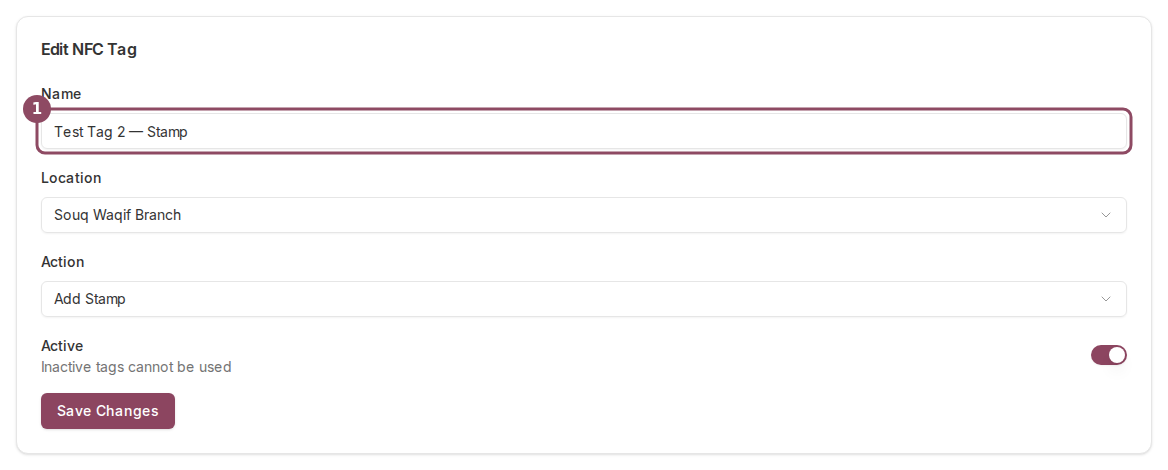
The Edit panel on a tag's page. Name, branch, action, and the Active switch are all editable after the tag is on the wall.
Before a tag goes on the wall
- Its status is Active.
- A stamp tag names the card it fills, or the tap fails.
- Its branch is set, unless you are happy losing it from branch reports.
- Your regulars have the Qtap app installed and signed in. Without it a tap opens a web page and earns nothing, so a poster QR code is the better choice for people who have not installed it yet. See how customers tap.
How a tap works
What a tap adds, and what the customer sees
NFC Tags
Manage your tag inventory
Location Comparison
Read the per-branch numbers your tags feed