
A voucher is the thing a customer looks at on their phone before they walk into your shop. You choose the colour, the background photo, the badge in the corner and the terms on the claim sheet. Qtap works out the rest so it reads clearly whatever you pick. Everything here lives on the Appearance step of the offer form. For the deal itself, see Public offers.

Pick a colour, any colour

Qtap default gives you charcoal. Your colour opens a picker and a box for a full hex code such as #123A2E. Type all six characters, or the form asks you for ā€œa full colour code, like #8E4A63ā€. Qtap measures how light or dark your colour is and sets the text from that. Dark colours get white text with a gold accent. Pale colours get near-black text with a charcoal accent. You never pick a text colour, so you cannot end up with a voucher nobody can read.
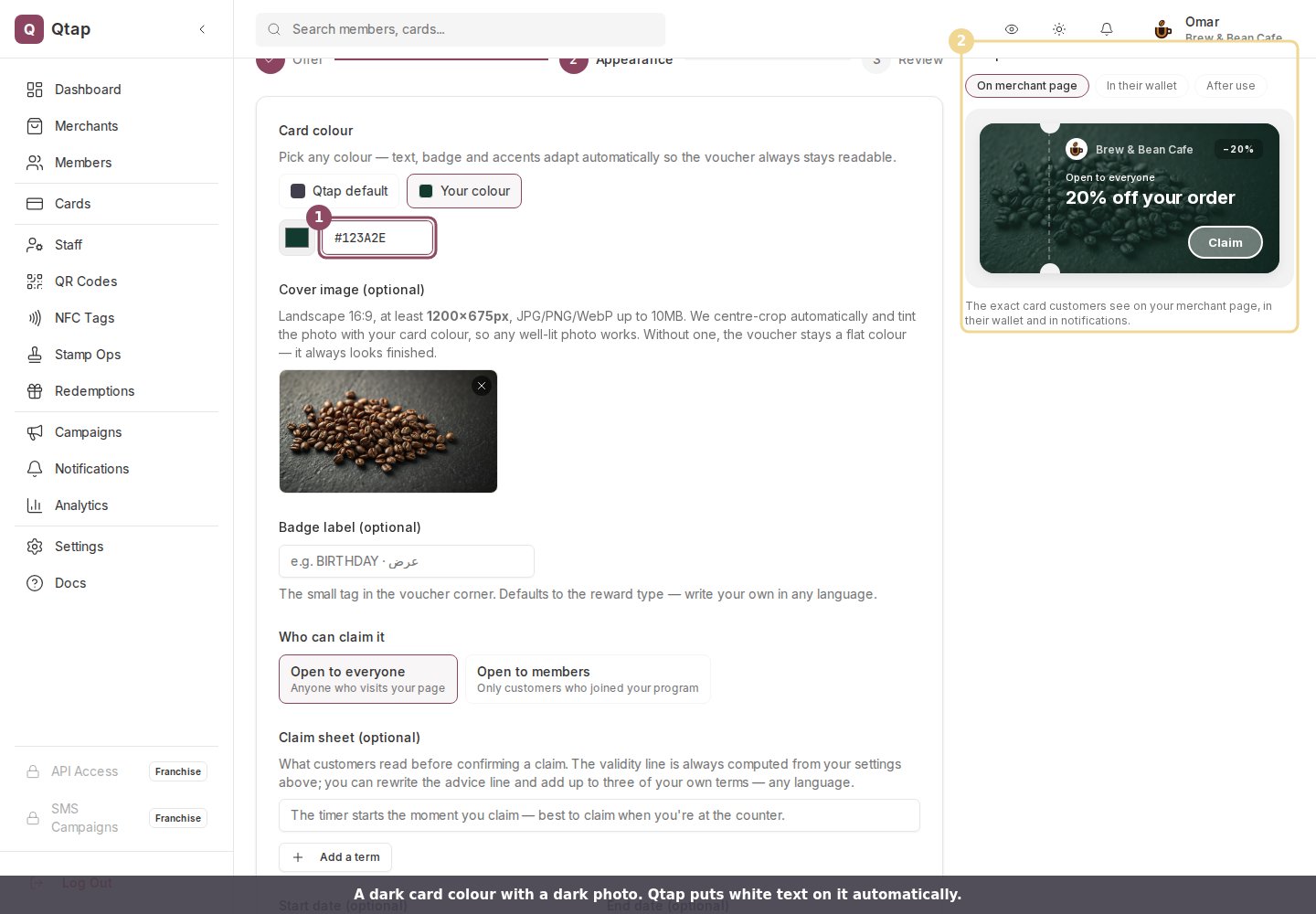
The offer form on a dark green card colour, with the voucher preview showing white text

A deep green card, with the text set to white automatically.
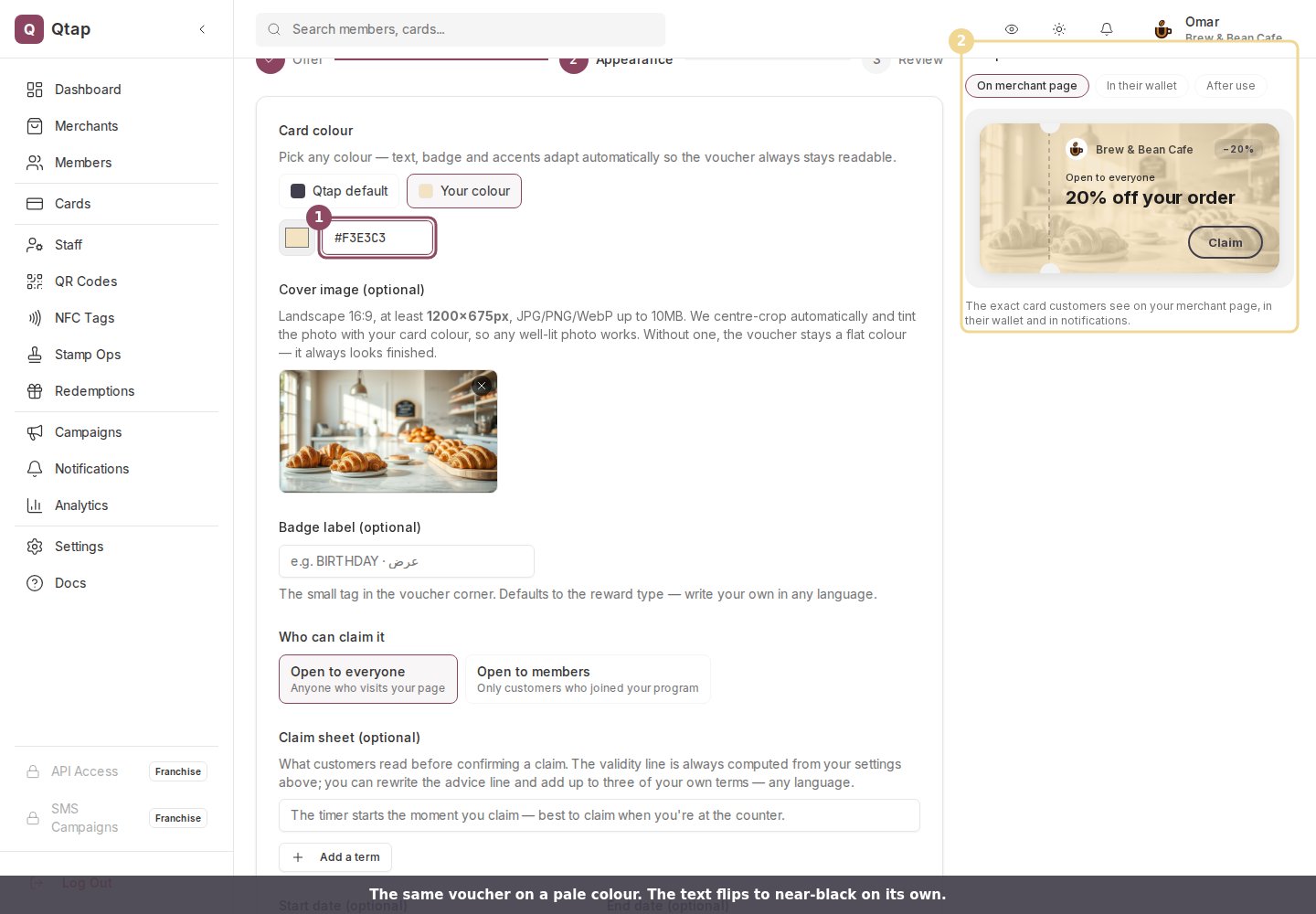
The offer form on a pale cream card colour, with the voucher preview showing dark text

The same voucher on cream. The text flipped on its own.

Put your own photo behind it

Upload cover takes a JPG, PNG or WebP up to 10MB. Aim for a landscape 16:9 photo at 1200x675 pixels or larger. Anything else still works: Qtap centre-crops whatever you give it and turns nothing away for being the wrong shape.
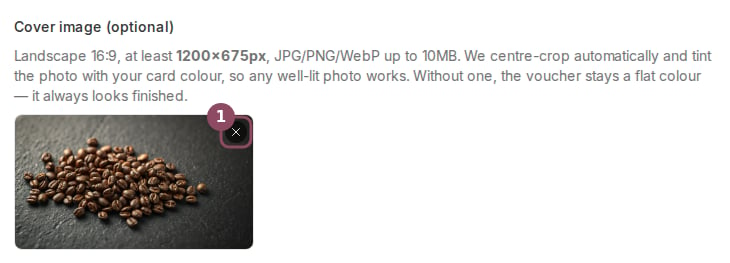
The cover image field showing an uploaded photo of coffee beans with a remove button

The small cross removes the photo and puts you back to a flat colour.

Qtap strips your photo down to its light and shade, then tints it with your card colour. The photo gives the voucher texture and your colour still sets the mood. Put a dark photo of coffee beans on one offer and a bright bakery counter on the next, and both still read as your shop. Some things worth knowing when you choose a picture:
  • Keep the subject near the middle. The crop takes the centre.
  • Well-lit photos survive the tint best. Very dark or very busy ones turn to mush.
  • Skip pictures with writing in them. The tint washes over text, and your voucher title sits on top of it.
Use my page cover borrows the cover photo already on your merchant page, which saves you a second upload when the same picture suits both.
Qtap makes the cropped copy when you save the offer, so the preview before that point shows your original upload. Both centre on the same spot, so what you see is what customers get.

Write the corner tag and the terms

Badge label rewrites the small tag in the voucher corner, up to 14 characters. Qtap prints it in capitals, and it takes Arabic as happily as English. Leave it empty and Qtap names the reward type for you.
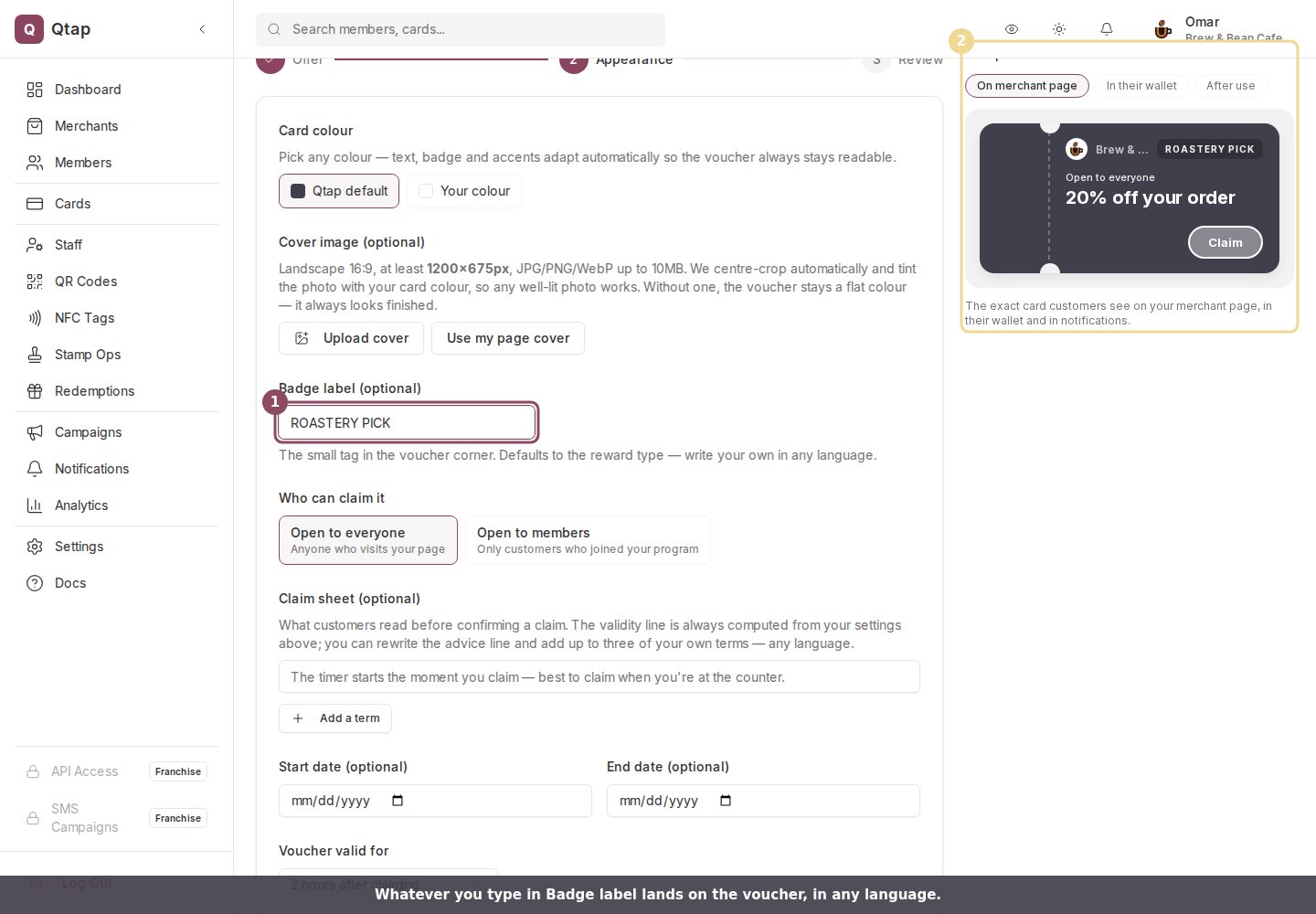
The badge label field filled with ROASTERY PICK and the same text on the voucher preview

The badge is your words, in the corner of the card.
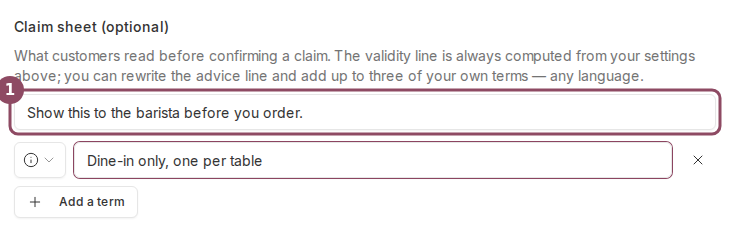
The claim sheet is what a customer reads just before they confirm a claim. You can rewrite the advice line and add up to three terms of your own, such as dine-in only or one per table. The line about how long the voucher lasts is always worked out from your own dates and claim window, so you never have to keep it in step by hand.
The claim sheet fields with an advice line and one term filled in

One advice line, plus up to three terms in any language.

Check it before you publish

The preview on the right is the card itself, drawn the same way your customers see it. Three buttons above it switch between how the voucher looks on your merchant page, how it looks once a customer holds it, and how it looks after they use it.
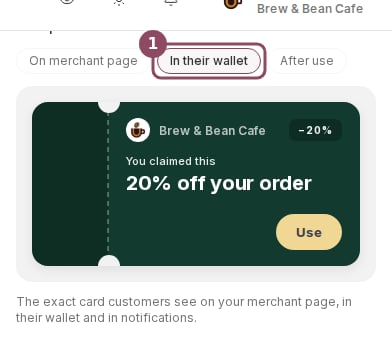
The live preview showing the In their wallet state of a voucher

A claimed voucher, with the gold Use button a customer taps at the counter.

A used, expired or fully claimed voucher drops your photo and turns plain. A used one keeps your colour on the stub alone. That is deliberate, so a spent voucher never gets mistaken for a live one at the counter.
The name and logo on the voucher come from your business details rather than this form. To change those, edit your merchant page. Colour, cover, badge and claim sheet all stay editable after customers start claiming, so you can redress a live offer without ending it. The deal itself locks on the first claim.